

Download King Kong Capture – Free Screen Grabber for Windows (2024)
Looking for a lightweight, reliable screen capture tool? King Kong Capture is a free, no-frills screen grabber designed for Windows users who need to quickly capture screenshots without the bloat. Since its debut in 2006, this compact utility has been a favorite among users seeking simplicity and speed.
Despite its age, it continues to serve well for basic screenshot tasks, especially on older systems. With a minimal footprint and straightforward interface, King Kong Capture is perfect for users who don’t want to install heavy software or deal with complex settings. Whether you're documenting a bug, saving a tutorial, or archiving web content, this tool delivers fast results.
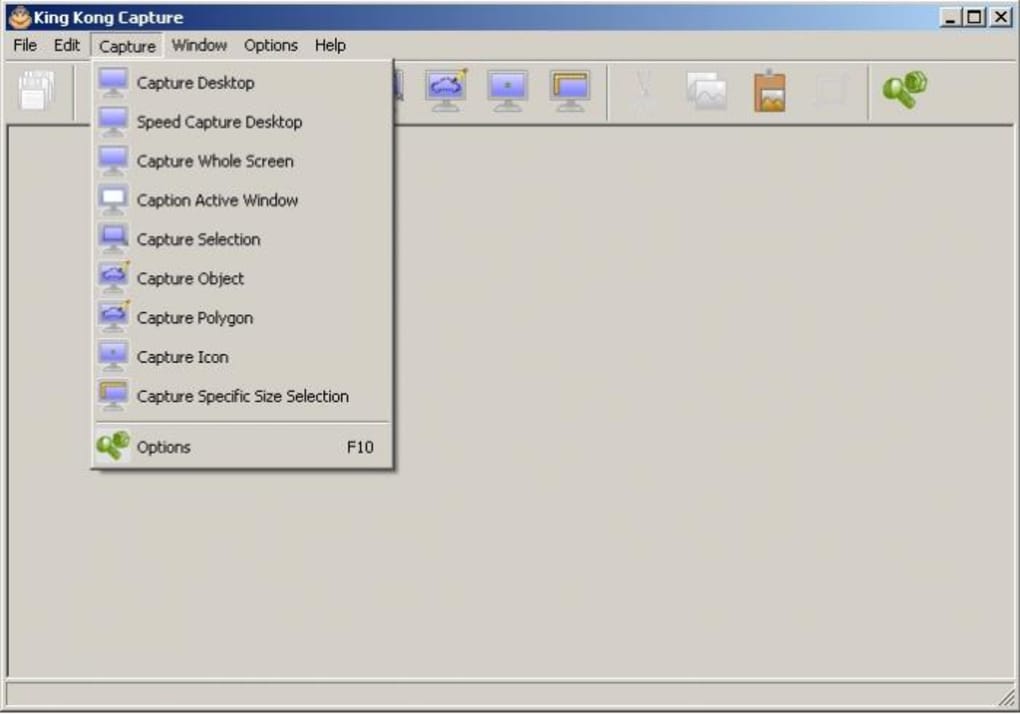
It supports multiple capture modes, including full-screen, window, and region selection, making it versatile for various use cases. Best of all, it’s completely free and doesn’t require registration or in-app purchases. Download King Kong Capture today and experience a no-nonsense approach to screen capturing on your Windows PC.
Key Features of King Kong Capture
King Kong Capture stands out in the crowded screen capture market by focusing on what truly matters: speed, simplicity, and efficiency. Despite being released over 18 years ago, the software continues to deliver core functionality with minimal overhead. One of its standout features is its lightweight design—it uses significantly less system resources than most modern screen capture tools, making it ideal for older machines running Windows 95 or earlier. This low resource demand ensures smooth performance even on underpowered hardware.
Another major advantage is its multiple capture modes. Users can quickly capture the entire screen, a specific window, or a custom region with just a few clicks. The hotkey support allows for instant activation, letting you take screenshots on the fly without navigating menus. Once captured, images are automatically saved to your chosen folder or copied to the clipboard, streamlining your workflow. The tool also supports basic image editing, including cropping and adding simple annotations, which is useful for highlighting key details.
King Kong Capture also offers direct export options, enabling users to save screenshots in common formats like BMP, JPG, and PNG. This compatibility ensures seamless integration with other software and platforms. Additionally, the software supports automatic file naming, so you don’t have to manually rename every screenshot. For users who value privacy and security, the tool doesn’t collect data or send information to remote servers—your captures stay local. While it lacks advanced features like video recording or cloud sharing, its focused design makes it perfect for users who want a fast, secure, and reliable way to capture the screen without distractions.
Installation & Usage Guide
Installing King Kong Capture is a breeze, especially for users who appreciate minimal setup. Since it’s a portable application, you don’t need to go through a lengthy installation process. Simply download the .exe file from a trusted source, extract it if necessary, and run the program directly. No admin rights are required, and the software doesn’t modify your system registry—making it safe to use on shared or restricted computers.
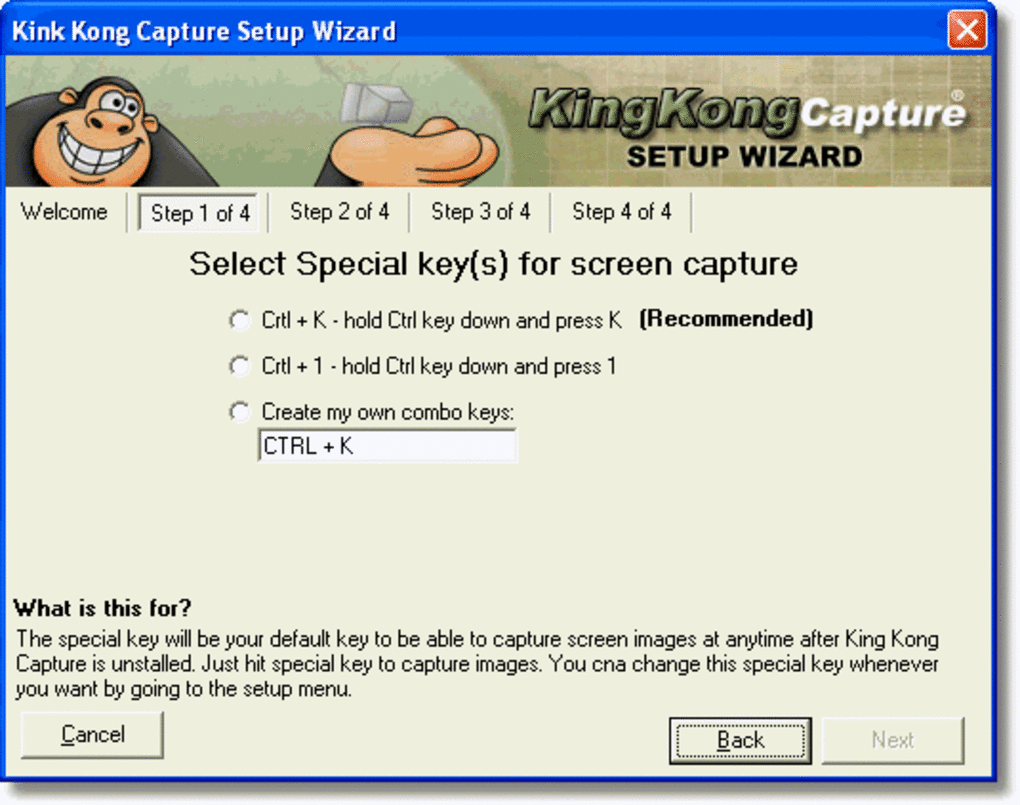
Once launched, the interface is clean and intuitive. You’ll see a small toolbar with icons representing different capture modes: full screen, active window, and region. Clicking any of these activates the corresponding capture function. For example, selecting “Region” allows you to drag a box around the area you want to capture. The tool also supports customizable hotkeys—pressing a predefined key combination (like Ctrl+Shift+S) instantly triggers a screenshot, perfect for productivity workflows.
After capturing, you’re prompted to save the image or copy it to the clipboard. You can choose your preferred file format and destination folder. The software remembers your last settings, so you don’t have to reconfigure them every time. For users who frequently capture content, this consistency saves time. Additionally, King Kong Capture supports batch processing, allowing you to capture multiple screenshots in succession without re-opening the tool.
For advanced users, the tool includes a basic editing panel. You can crop unwanted areas, add arrows or text, and adjust brightness or contrast. While not as powerful as dedicated image editors, these tools are sufficient for quick annotations. Overall, the usage experience is smooth and efficient, especially when compared to bloated alternatives that slow down your system.
Compatibility & System Requirements
King Kong Capture is designed for legacy Windows systems, supporting Windows 95 and earlier versions such as Windows 98, ME, and NT. This makes it one of the few screen capture tools still compatible with older hardware and operating systems. If you’re using a vintage PC, an old laptop, or a system running outdated software, this tool is a reliable choice. It’s particularly useful for retro computing enthusiasts, educators using legacy systems, or businesses maintaining older infrastructure.
Due to its lightweight nature, the software requires minimal system resources. It runs efficiently on machines with as little as 16MB of RAM and a 100MHz processor—hardware that would struggle with modern screen capture apps. The program itself is under 1MB in size, so it won’t consume valuable disk space. This small footprint also means it can be easily stored on USB drives or external storage for on-the-go use.
While it doesn’t support modern operating systems like Windows 10, 11, or macOS, it remains a solid option for users working within its supported environment. For those on newer systems, alternatives like LightShot or FastStone Capture may be better suited. However, if you’re working on a Windows 95 machine or need a minimal tool for legacy tasks, King Kong Capture is a secure, free, and dependable solution. Always download from trusted sources to avoid malware, and ensure your antivirus software is active during installation.
Pros & Cons of King Kong Capture
- Pros:
- Extremely lightweight and fast, ideal for older systems
- Completely free with no hidden costs or ads
- Simple, intuitive interface with no learning curve
- Supports multiple capture modes: full screen, window, and region
- Customizable hotkeys for instant screenshot access
- Basic image editing tools (crop, annotate, adjust contrast)
- No data collection—privacy-focused and secure
- Portable version available—no installation needed
- Cons:
- Only compatible with Windows 95 and earlier versions
- No support for modern OS like Windows 10/11 or macOS
- Lacks advanced features like video recording or cloud sharing
- Outdated interface—doesn’t match modern design standards
- No automatic update notifications (manual updates required)
- Limited file format support compared to modern tools
Frequently Asked Questions (FAQ)
Is King Kong Capture free to download and use?
Yes, King Kong Capture is completely free. There are no registration requirements, trial periods, or in-app purchases. You can download and use it indefinitely without any cost.
Can I use King Kong Capture on Windows 10 or Windows 11?
No, King Kong Capture is only compatible with Windows 95 and earlier versions. It does not support Windows 10, 11, or any newer operating systems due to outdated system requirements.
Does King Kong Capture support video recording?
No, King Kong Capture is a static screen grabber. It only captures images, not video. For screen recording, consider using tools like oCam or FastStone Capture.
How do I update King Kong Capture?
Manually. The software does not include an auto-update feature. You’ll need to visit the official download page periodically to check for updates, though the last update was in 2006.
Is King Kong Capture safe to download?
Yes, as long as you download it from a trusted source. Always scan the downloaded file with your antivirus software before running it. Since it’s open-source and has been around for years, it’s considered safe by many users.
Final Verdict & Call to Action
King Kong Capture may be an old tool, but it still holds value for the right audience. If you’re working with legacy systems or need a no-nonsense, lightweight screen grabber that doesn’t slow down your machine, this software is worth considering. Its simplicity, speed, and zero cost make it a reliable choice for basic screenshot tasks. While it lacks modern features and won’t run on newer operating systems, it excels in its niche.
For users on Windows 95 or earlier, King Kong Capture remains one of the most efficient screen capture tools available. It’s secure, portable, and requires no installation—perfect for temporary use or shared computers. If you’re a retro computing enthusiast, a teacher using old lab equipment, or someone who values minimalism in software, this tool deserves a spot in your digital toolkit.
Download King Kong Capture today and experience a fast, free, and secure way to capture your screen—especially if you’re working on older hardware. While it may not be the future of screen capture, it’s a proven solution for the past that still works today.







